Terminal Shortcuts & Tips
The agent terminal supports keyboard shortcuts, tab completion, and inline help to speed up command entry. This page documents everything available.
Keyboard Shortcuts
| Shortcut | Action |
|---|---|
↑ / ↓ |
Navigate command history (previous / next) |
Tab |
Autocomplete the current command name or parameter |
Enter |
Submit the current command |
Ctrl + C |
Clear the current input line |
Tab Completion
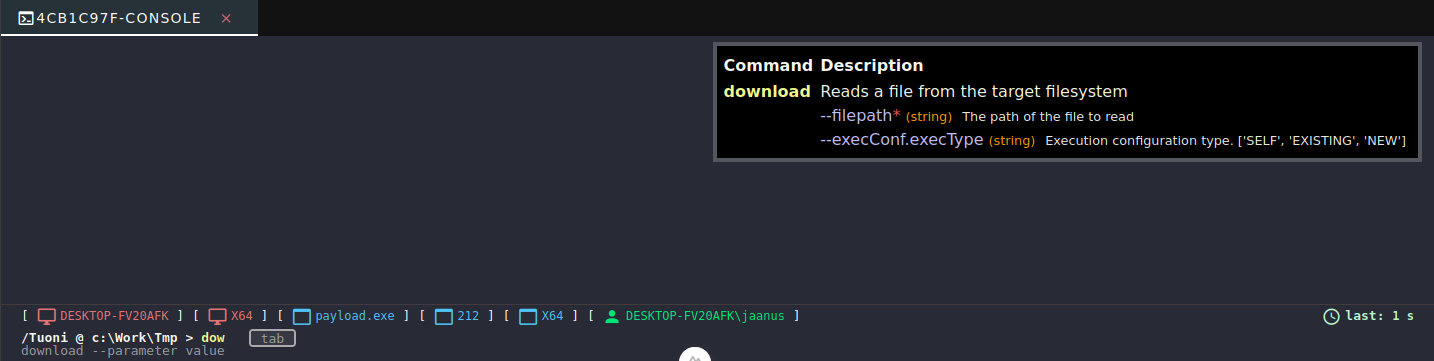
Pressing Tab completes command names and parameter names based on what you have typed so far.
- Command names - type the first few characters and press
Tabto complete or cycle through matching commands. - Parameter names - after entering a command name and
--, pressTabto see available parameters for that command.
Inline Help Panel
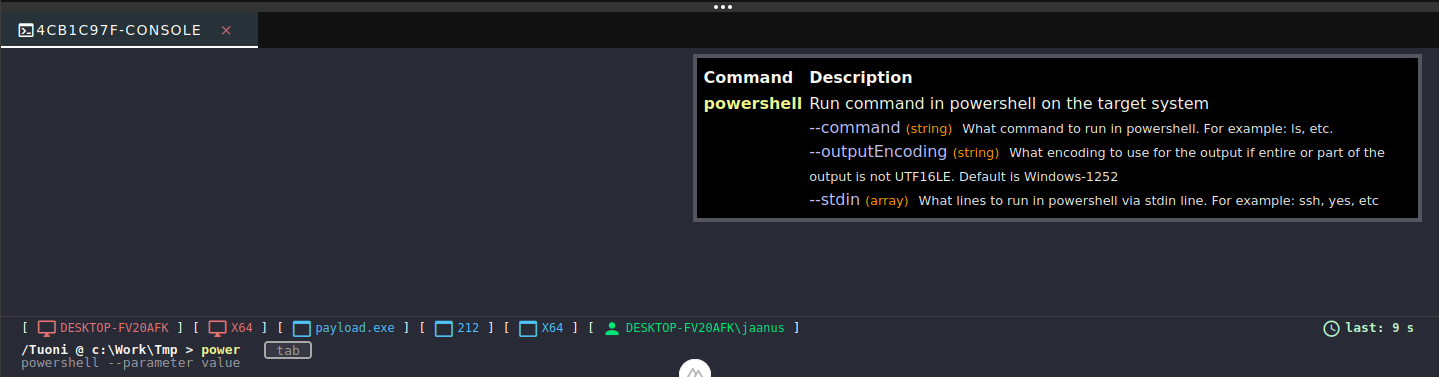
As you type a command, a help panel appears automatically on the right side of the terminal. It shows:
- The command's purpose
- All available parameters with their descriptions
- Parameter types and whether they are required
The panel updates live as you type, so you can reference it without leaving the input field.

Command History
Every command you submit is saved to the session history. Use ↑ and ↓ to scroll through previous commands. History persists within the current session.
Command Aliases
Frequently used commands can be saved as aliases and run with a short name. Aliases are managed in the Commands & Aliases page of the GUI.
See Commands & Aliases for details on creating and managing aliases.
Header Bar
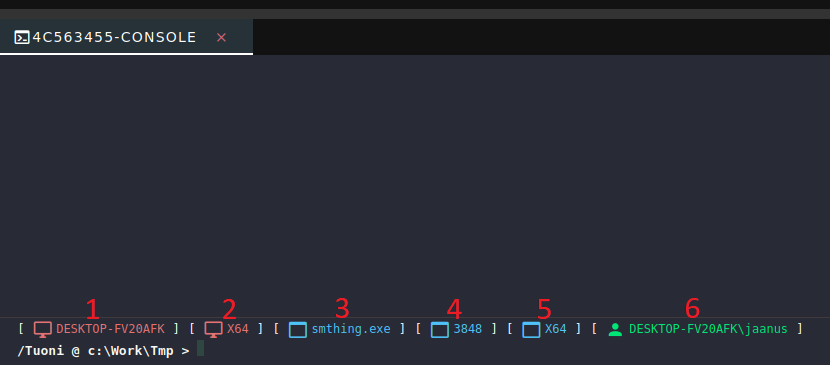
The header bar above the input displays real-time information about the connected agent:

| Position | Colour | Value |
|---|---|---|
| 1 | Red | Machine name |
| 2 | Red | Machine architecture |
| 3 | Blue | Process name |
| 4 | Blue | Process ID |
| 5 | Blue | Process architecture |
| 6 | Green | Username the process is running under |
Tips
- Use
jobsto list any commands running in the background (e.g.socks5,screen-tracker). - Use
psoutput as a reference when runningtoken-steal,inject, orkill- copy the PID directly from the terminal. - Long-running background tasks do not block the terminal - submit the next command immediately after.